Can this be saved

Dfndr90

Member
Local time
4:55 AM
Joined
May 17, 2006
Messages
45
Location
Short North-Columbus Ohio
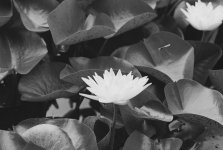
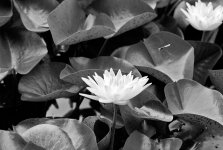
O.K I am a photo shop novice and I can not figure out how to save the attached photo. I am using photoshop elements. I have not done anything to the photo except change it to pure gray scale. I would like to burn the flower in while keeping the dragon fly visible.

Any help is appreciated.

Matt...
 

Attachments

  • Dragon Fly.jpg
    Dragon Fly.jpg
    718.1 KB · Views: 0
Not sure if this is too subtle.
 

Attachments

  • Dragon Fly2.jpg
    Dragon Fly2.jpg
    239.7 KB · Views: 0
what is the source?


film? digital?

if its film, try to scan it again fiddling with the features to get more tone, then only lighten the area around, if its digital you might be stuffed though.

Use the touch-up finger tool, select burn, and draw over the area. I doubt it'll work that well though looking at that image 🙁
 
Hi,

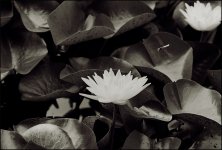
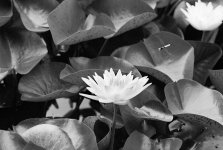
Had Photoshop open when I read this so I thought I'd give it a go. Not a Photoshop expert by any means but I tweaked the levels before using the burn tool (worked on the flower to burn in the shadows first at about 5% nice and slowly and then worked in the midtones again at about 5%) and then tweaked the levels a bit at the end because I didn't think it was dark enough. I also used the dodge tool (highlights and midtones) on the dragonfly to help lift it out a little... I even tweaked the wings ever so slightly by dodging highlights.
Hope that explanation helps a bit?

I do like contrasty photos though so if you think its blown out a bit too much I can understand 🙂

Edit: Just put a less contrasty one there too, sorry I'm fiddling!
 

Attachments

  • rff_flower_edit.jpg
    rff_flower_edit.jpg
    399 KB · Views: 0
  • rff_flower_edit2.jpg
    rff_flower_edit2.jpg
    352.7 KB · Views: 0
Last edited:
You did a much better job on the flower than I did - mine has that 'uniform digital burn look' to it.

Edit:
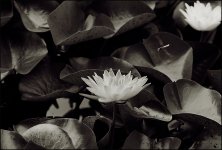
Here's another attempt at keeping some of the details in the flower after bringing it down somewhat.
 

Attachments

  • Dragon Fly3.jpg
    Dragon Fly3.jpg
    236.4 KB · Views: 0
Last edited by a moderator:
Thanks 🙂 I think I may have run the more contrasty one though Alien Skin Exposure which may have added a tiny bit of grain... that may explain why it doesn't look so digital?
 
Methinks,

Wow, that is great. Do you have the full version of Photo shop? I only have elements and it does not seem to have all the features you used.

Matt...

BTW I like lots of contrast in my photos too.
 
Last edited:
Hey Matt!

Thanks for the compliments, the font is called BM Biscuit if I recall correctly, you can get it free from www.dafont.org I think!

You should have the dodge and burn tools I would think (am trying to think because I had Elements on my laptop) but I got the Alien Exposure plugin seperately so you probably don't have that! The dodge/burn tools are the icon that looks like a lollipop and the one that looks like a hand doing the OK sign (ish!), I'm sure you should have them somewhere. Then once the tool is selected on the toolbar above you select whether you want to dodge/burn highlights, midtones or shadows...
 
Apologies for yet another image, but just to show you the full version of Photoshop also has a shadow/highlight adjustment which allows you to pull things out from shadows or to pull out highlights more... its all slider based so its very easy, here's the result (probably the best so far as it even gets the water droplets on the flower!). Again you could always tweak with dodge/burn afterwards to make the insect stand out a tad more perhaps...
 

Attachments

  • rff_flower_edit3.jpg
    rff_flower_edit3.jpg
    360.8 KB · Views: 0
Last edited:
Back
Top Bottom