how to improve my black & white images?

back alley

IMAGES
Local time
5:50 AM
Joined
Jul 30, 2003
Messages
41,288
Location
true north strong & free
…short of buying a leica monochrom, which i think help to create gorgeous b&w images…what can i do to improve?
i'm talking about digital here btw...

things i have considered so far…exposure…learn my software more…buy new software but what software?

i like dark and contrasty images…clean looking, tack sharp detail laden images...
 
Converting color digital images to BW in Photoshop or Lightroom always gives flat, horrid tonality. Black and White plugins do a better job because they increase midtone comtrast without losing detail in the light and dark tones. I've tried most of them, and found that the best one was also one of the least expensive: Topaz BW Effects 2, which is only about $60.

Here are some examples from it that i've done:

shovel-vine.jpg

Original color slide


shovel-vine-bw.jpg

Converted in Topaz


concrete-pew.jpg

Original from Canon 5DmkII


concrete-pew-bw.jpg

Converted in Topaz


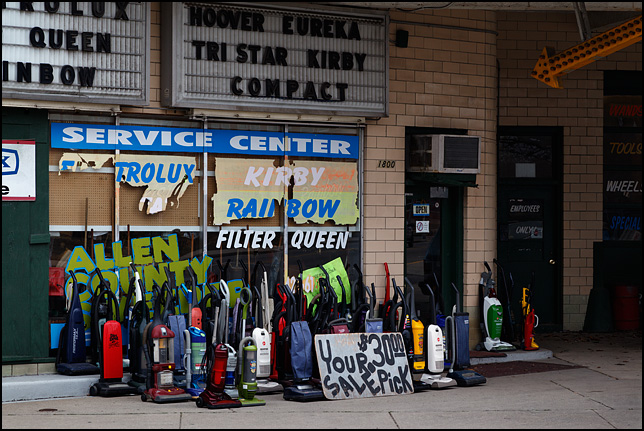
allen-vacuum-2.jpg

Original Canon 5DmkII


allen-vacuum-2-bw.jpg

Converted in Topaz


I've tried others like DXO Filmpack and Alienskin; both are quite expensive and while they were good, I like the results a bit better with Topaz.
 
Shoot RAW Joe. Get some B&W presets as a starting point and muck around with contrast/exposure/black sliders. You can even throw in some clarity slider action and a dash of vignette.

DxO Filmpack 3 was free to download earlier this year & I highly recommend it.
 
I know it's frowned upon, and it is actually polluting the quality, but I always prefer a little added grain, it just looks more authentic to my eye. It's probably just a throwback from learning with film, but i really dislike clean B&W.
 
A simple first process to try - break your color image down to R, G and B layers (overlaid on each other).
Play with the opacity of each layer. That alone may get what you desire.

Next step: play with the "curves" adjustment of each layer in addition to the opacity. This takes some practice to "get in the groove".

Flatten the image (merge layers).

That gets me pretty much what I personally am happy with (YMMV !).

You can also go advanced and tweak the character of each layer if you desire. The possibilities are endless, but I like doing things manually in small steps, again that's a personal choice.
 
Retrospectively you should have kept an RD-1 because IMO they produce far better monochrome files than what you're currently using.
 
An interesting book that was in my local library and gave me some nice approaches-
http://www.barnesandnoble.com/w/black-white-pipeline-ted-dillard/1112224013?ean=9781600594007

He has a chapter or two devoted to some software converters, like Nik SilverFX or whatever it is called. And he has a good system for creating multiple RAW conversions and blending them together using smart layers- very powerful when you add the color shifting options of B&W conversions.

My preferred method to learn a new technique is to find a method that seems to make sense and LEARN IT. Use it until it breaks. Jumping from software to software, filter to filter, hardware to software to filter doesn't teach me much. It keeps me busy, but I find I am spinning tech wheels, not making images.

Like with a film-pick one, one developer, and push it for a while. Learn it. If it still comes up short, start adding new techniques. Or throw it out and pick up another one.Until I have worked with a structured approach, though, I don't even understand what is working and what isn't, so finding a new system is a guess.

One thing to remember with doing color conversions- the color you start with doesn't matter. If desaturating the red channel and turning the blue channel magenta makes it convert to the look you want, that's the way to do it. If you want red roses to convert to light gray, brighten the red until it hurts.

Then again, I know people who bought SilverFX and that's all they needed.

And find models. Printers to emulate. Print out some of their work from the web or have books handy so you remember what you want in your prints. Sounds like some of W. Eugene Smith's work should be on your wall-
http://www.bing.com/images/search?q...ata&qpvt=w.+eugene+smith+minamata&FORM=IGRE#a

http://www.bing.com/images/search?q=w.+eugene+smith+magnum&FORM=HDRSC2

 
Love that shovel Chris.

I've used Silver Efex Pro and certainly have not mastered it. I had one image where a flat tonality preset there was just what I needed. I prefer just adjusting in Lightroom from the RAW file usually. I don't do anything in batches and don't have any preset procedures that are routine. I fiddle with each image as it needs. I am not taking that many. I run down the list of sliders on the right in line with Martin Evening's excellent book. Raising contrast, raising shadows, lowering black point, raising highlights or raising white point. With alt/option pressed and using the black or white sliders you can stretch the image so it does include absolute black and control how much of the image goes to absolute black, and the same with white. I do minimal noise reduction, usually, and I rarely add grain, but like it sometimes.
 
What software do you use Joe - LR? If so, play around with the BW presets in the left hand pane of the Develop module. I also downloaded Filmbot bw presets for LR/CS (freeware) that I often find useful. I use these more often than DxO Filmpack.

Chris's results with Topaz speak for themselves - I think Topaz has a special deal at the moment where you can have the entire Topaz suite for USD$199.

And of course SEP is another very popular converter with proven results.
 
High contrast, clean, detailed B+W looks digital and overdone on a computer monitor.
Adding grain and other manipulations in converting from color can help. Printing the final image usually helps most.

I like that shovel image but still... it looks like an iPhone camera produced and processed the image.
The contrast and edge detail is just way too hard to look natural (in the color version as well as B+W).

Start with a low contrast color version with black and white points flat rather than to their clip limit (you can bounce them out later).
As you use the color sliders during monochrome conversion you can shift the hue/saturation/luminance (HSL in LR5 or others) to set the tone range where you hope to find it then, use levels to create desired contrast.
The color sliders create the tone palette and then the levels determine the final contrast.
Anyway, that's my 2c.

Cheers!
 
i need to take a class i think…much of what you guys are saying is like another language to me. part of the problem (i think) is that i am completely self taught…trial & error more than reading any instructions/directions...
 
I think if you are looking for that just so b/w, you will all ways feel in the back of your mind, there is some thing not,, well missing.

Now i know there are some good conversions, but they are only on the screen, you then have to think b/w printing, now that starts another issue.

Your searching, will be???? its not a wet print as i remember
 
Do you use Photoshop? If so, anything CS5 or beyond has both Black & White and Channel Mixer in the Image > Adjustments menu. Playing around with these will give you a feel for how to manipulate the tonal values using color mixing and filtration. Learn the concept of color-to-tone before moving on to add grain, or selective toning of parts of the image.
 
i need to take a class i think…much of what you guys are saying is like another language to me. part of the problem (i think) is that i am completely self taught…trial & error more than reading any instructions/directions...

Learn to use curves. Or use presets. That's the first item to settle up. If you aren't willing to hunker down and learn to use curves you'll never get anywhere on your own. If PSE doesn't have curves, find a program that does have them.

Learn by doing tutorials, following examples step by step. If web sites or books don't work for you, then yes, a class is the next step.

Or seriously, stick to presets made by others. This is the fork- pick the road you want to go down.
 
Back
Top Bottom