dmr
Registered Abuser
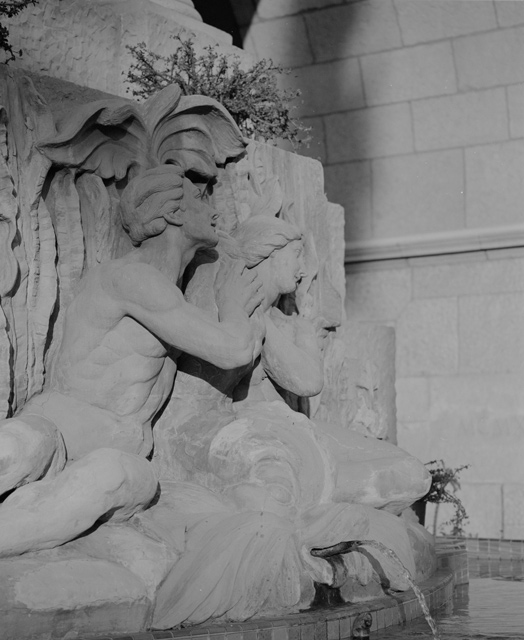
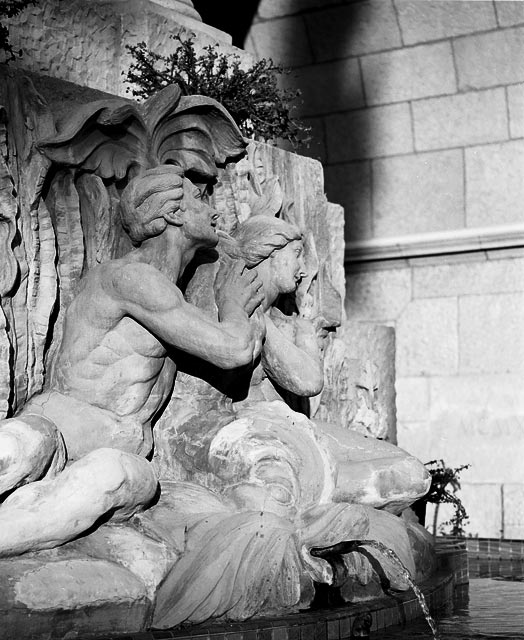
Ok, gang, in response to a thread on the topic of better results scanning B&W negatives as positive a few days back, I decided to put this to the test and be as consistent as I could about it.
I picked a negative from a batch I am currently scanning. This one happens to be Panatomic-X, old, but still in good condition, and one that looked normally exposed to the naked eye. I scanned it 3 ways, all shown below, and I tried to be as consistent as I could with it. I scanned everything 16 bit, 4x sampling, on the K-M SD IV with the standard software. No correction in scanning. I tried to be as consistent in scanning and in adjusting as I could, making this a fair comparison in methods.
(Yes, I can see what looks like a weak fingerprint in there, some dust spots, and I think some highlights in the horse are washed out. I didn't do any cropping or spotting.)
The scans below are:
1. Scanned as B&W negative.
2. Scanned as B&W positive.
3. Scanned as color positive.
Then in Photoshop, I did the following steps on each scan:
1. Invert, if necessary.
2. Levels, I just brought the sliders to the point where I thought significant information began to appear, not looking at the photo at the time. On the color one I did each color level separately and then a final sanity check on RGB.
3. Convert to 8 bit, greyscale on the color one.
4. Resize, 800 on the long side.
5. Save as .jpg, quality 7.
Comments?
I picked a negative from a batch I am currently scanning. This one happens to be Panatomic-X, old, but still in good condition, and one that looked normally exposed to the naked eye. I scanned it 3 ways, all shown below, and I tried to be as consistent as I could with it. I scanned everything 16 bit, 4x sampling, on the K-M SD IV with the standard software. No correction in scanning. I tried to be as consistent in scanning and in adjusting as I could, making this a fair comparison in methods.
(Yes, I can see what looks like a weak fingerprint in there, some dust spots, and I think some highlights in the horse are washed out. I didn't do any cropping or spotting.)
The scans below are:
1. Scanned as B&W negative.
2. Scanned as B&W positive.
3. Scanned as color positive.
Then in Photoshop, I did the following steps on each scan:
1. Invert, if necessary.
2. Levels, I just brought the sliders to the point where I thought significant information began to appear, not looking at the photo at the time. On the color one I did each color level separately and then a final sanity check on RGB.
3. Convert to 8 bit, greyscale on the color one.
4. Resize, 800 on the long side.
5. Save as .jpg, quality 7.
Comments?